ZMK and designing my keyboard layers (Typing Ergonomics, Part 2)
In Part 1 I settled on Colemak-DH for the letters. Letters are the easy part, though: they’re a small fraction of the keys on the board but the vast majority of keystrokes, so there are well-studied layouts to pick from. Everything else, the symbols, numbers, navigation, and modifiers, is on you to place. For programming, that “everything else” is a much bigger share of what you type, so it deserves real thought.
This post is about how I laid out those remaining keys across layers in ZMK. I’ve definitely spent a lot of time uselessly pondering my changes, and I probably would have been better off setting more in stone early on. But I’m happy with where it ended up, and the reasoning is below.
Core principles:
- Keep a number layer. There is some cognitive and mechanical load to a hold + press instead of a single press, and if I’m going to have a larger keyboard (5 rows), I should use all the keys.
- Corresponding finger usage should be similar for both hands, maybe with a slight preference for the right.
- Actions I typically follow up with the mouse (ctrl, print screen) should initiate entirely on the left side.
- Prioritize programming keys.
- Generally prefer the left hand for modifiers, and the right hand for the more common combinations with those modifiers.
It feels like there’s a stability gap between having everything on 2 layers (regular + shift) and 3 layers (regular + shift + layer 1). Reasonably, if I could reach the numbers well enough, I should also be able to reach the symbols. The main thing was that I really needed a good place to put my curly brackets, and eventually I liked the structure of having symbols organized more sensibly, so I tried it out.
Some comments about my current layout:
Base layer
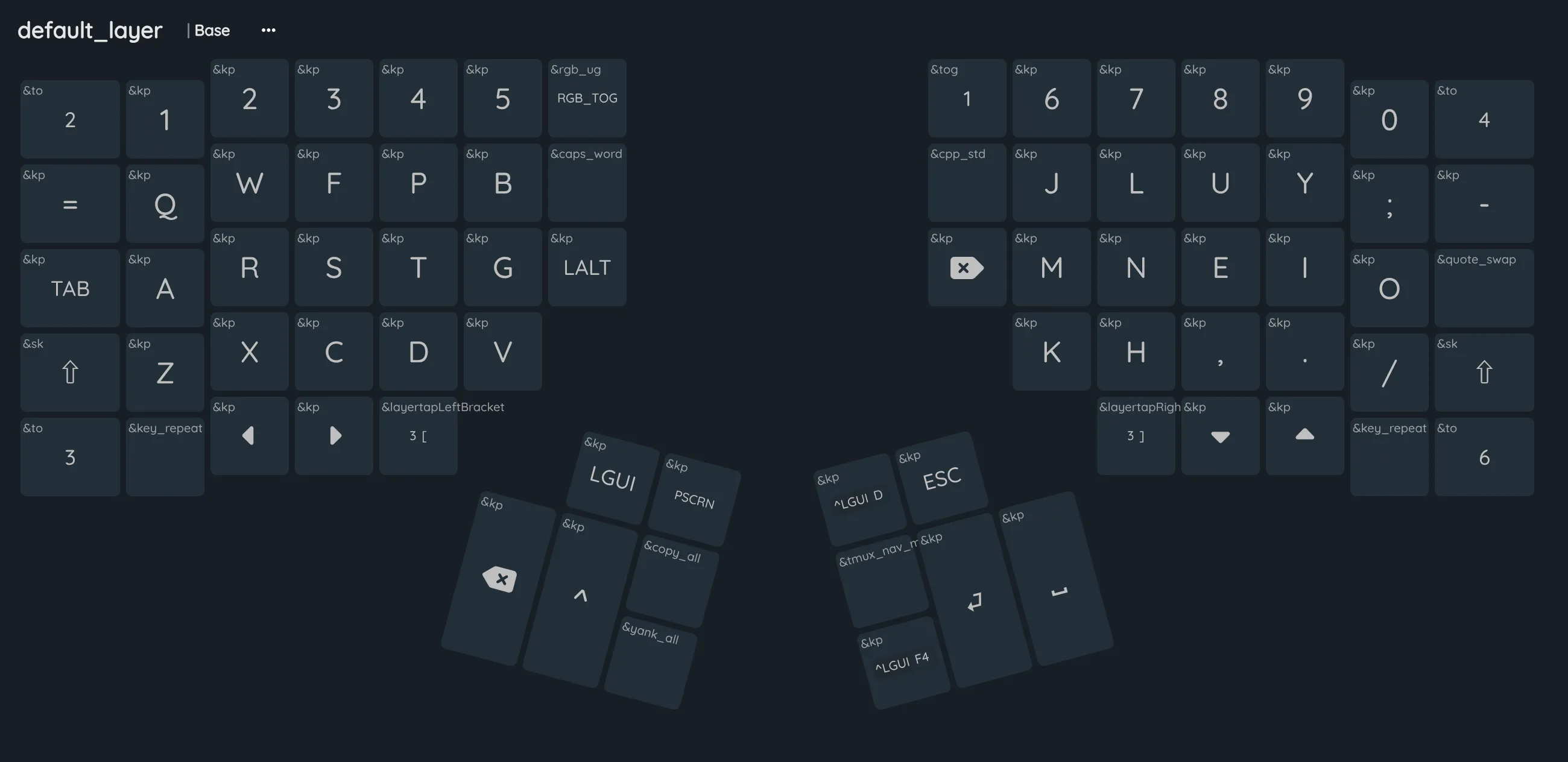
- Although a lot of people replace the Caps Lock key with Ctrl, I really like the feel of using tab there, and putting Ctrl on the left thumb instead, since I don’t use the delete key very often. Tab is pretty common in programming, and without sacrificing letter space, this is a very natural fit.
- I really like keeping the escape key as a single thumb key so that it is immediately accessible for exiting insert mode and browser/app focus. I experimented moving it elsewhere for modifier keys to be in the thumb clusters, but ultimately it feels very fast and convenient, so I kept it. It is pretty important it’s on my dominant hand; since it’s a reach, being agile and less prone to tiring really helps out.
- I experimented a lot with having the layer shift key on the thumb clusters, but the issue was that felt a bit unnatural and overloading, given that there is already space, backspace, enter, ctrl, and super. I also tried moving it to the t/n keys, but that interfered with my normal typing of t/n. But I found that the bottom index keys were surprisingly reachable.
- So, I shifted the arrow keys one outwards on the bottom row. It was tempting to keep an arrow cluster, but there wasn’t great space for it, and the shape of the keyboard didn’t facilitate it well anyways, unless it was exactly in the base hand position.
- Since ” is used more than ’, I switched their shift activations.
- Even though they are symbols, I found that quick access to = and - were quite helpful on the home layer.
- I couldn’t find a great use for the key repeats, but maybe that is a skill issue.
- Fun keys: caps word for SCREAMING_SNAKE_CASE, cpp_std for std::, yank_all for vim-specific macro.
Mod layer
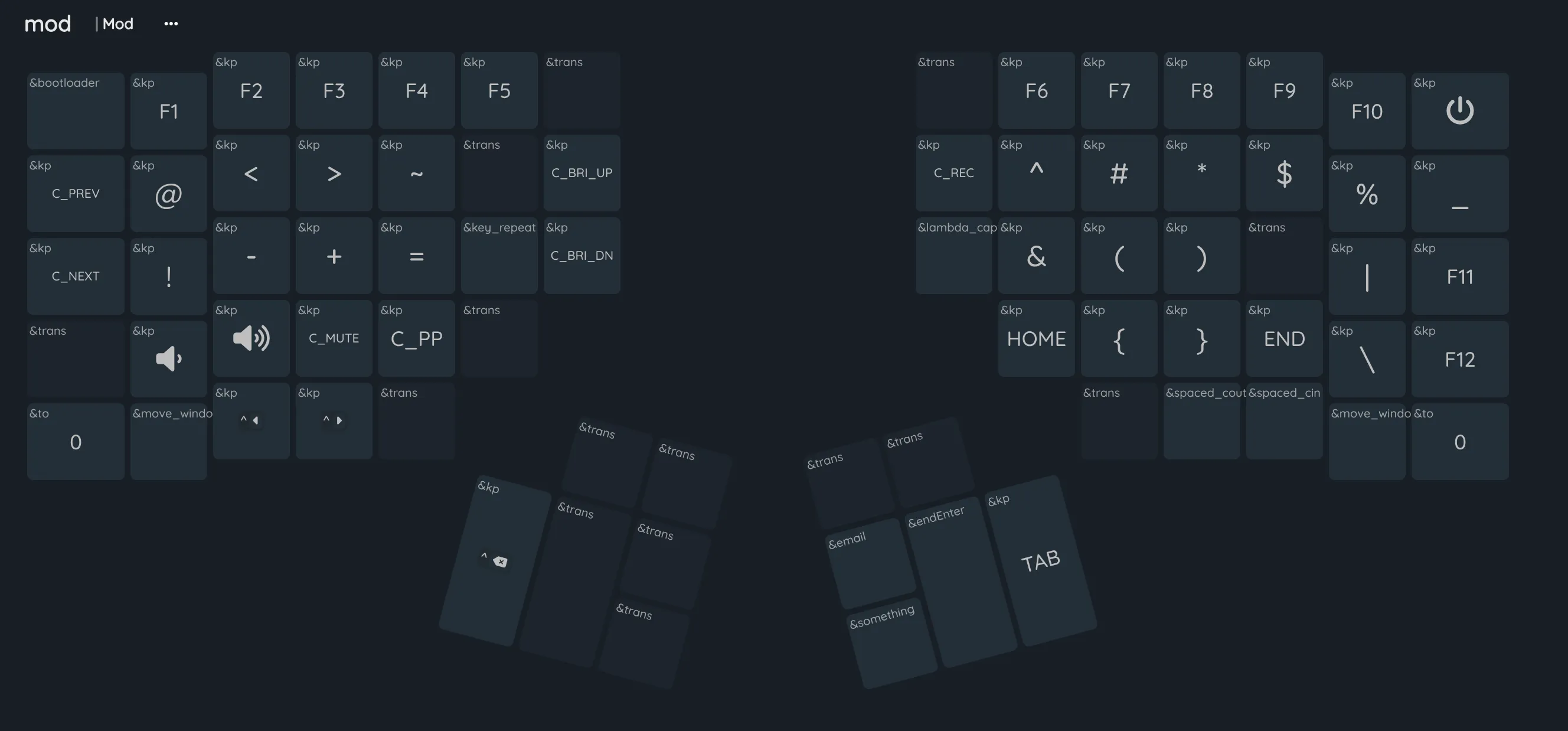
- As stated previously, a goal is to generally have the left hand hold the key, and right hand press. So most of the common symbols are in the right side, here.
- I really want to have () and be in the index/middle fingers for convenient roles, and also semantic matching.
- ^ and Home move to front, and $ and End move to back, so they are on the index and ring fingers, which match the positions.
- There are many common bigram combinations with the “mathy” symbols, such as
->, <>, >=, <=, -=, +=, !=. To roll inward, I place = on the index finger, and arrange others to not interfere. == can be done with the key repeat. There are a few extra spaces, so I put common utility keys like volume/mute, pause/play, and next/prev that help - Normally, ctrl + backspace is awkward with both on the left thumb cluster, so there is a special case override for backspace here
Macros layer
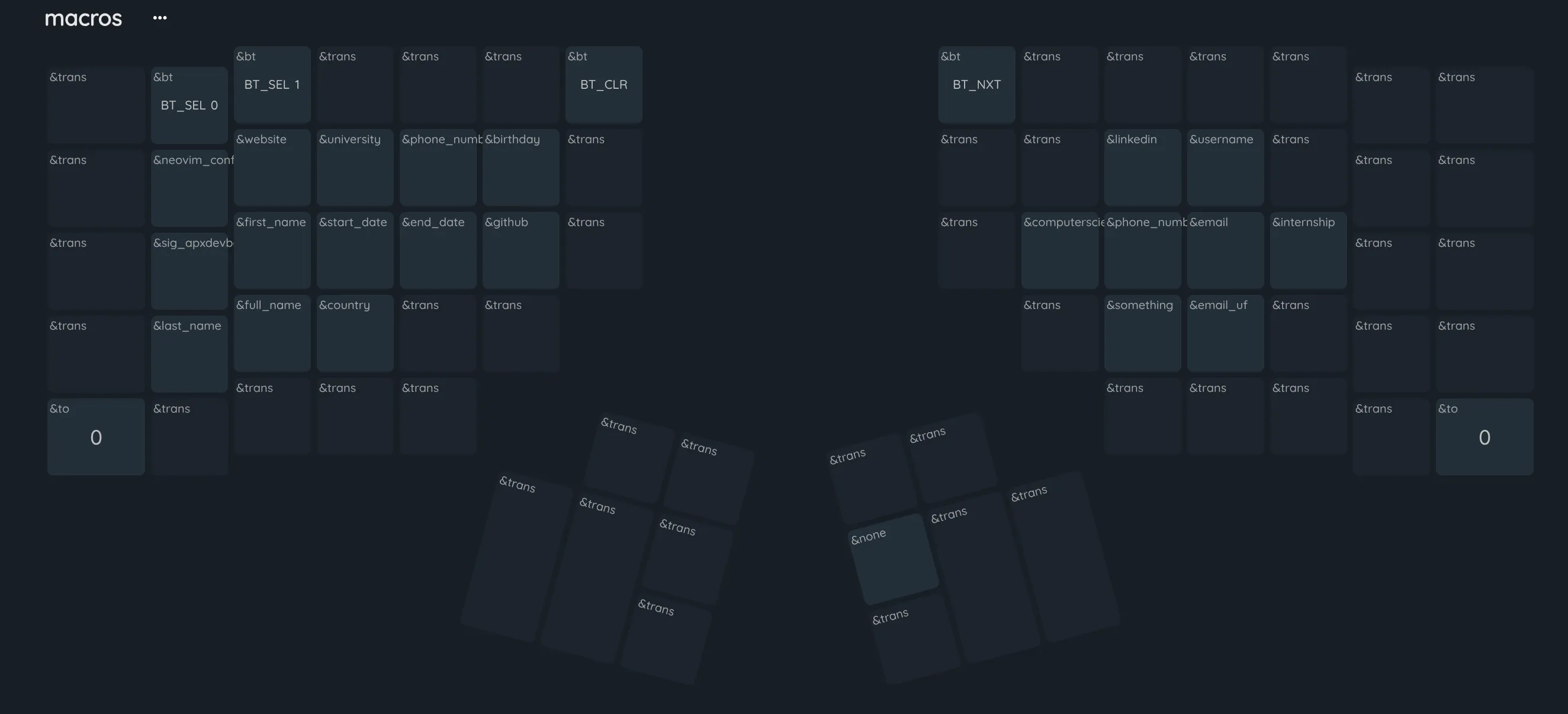 Having macros is decently helpful, though annoying if typed accidentally. Most of these are helpful for filling out job applications, but a couple I’ve found helpful in everyday life are:
- Email / phone number: very common, and pretty long to type out.
- A common password: not the most secure, but who is going to figure out how to press this exact key in this state?
Mouse layer
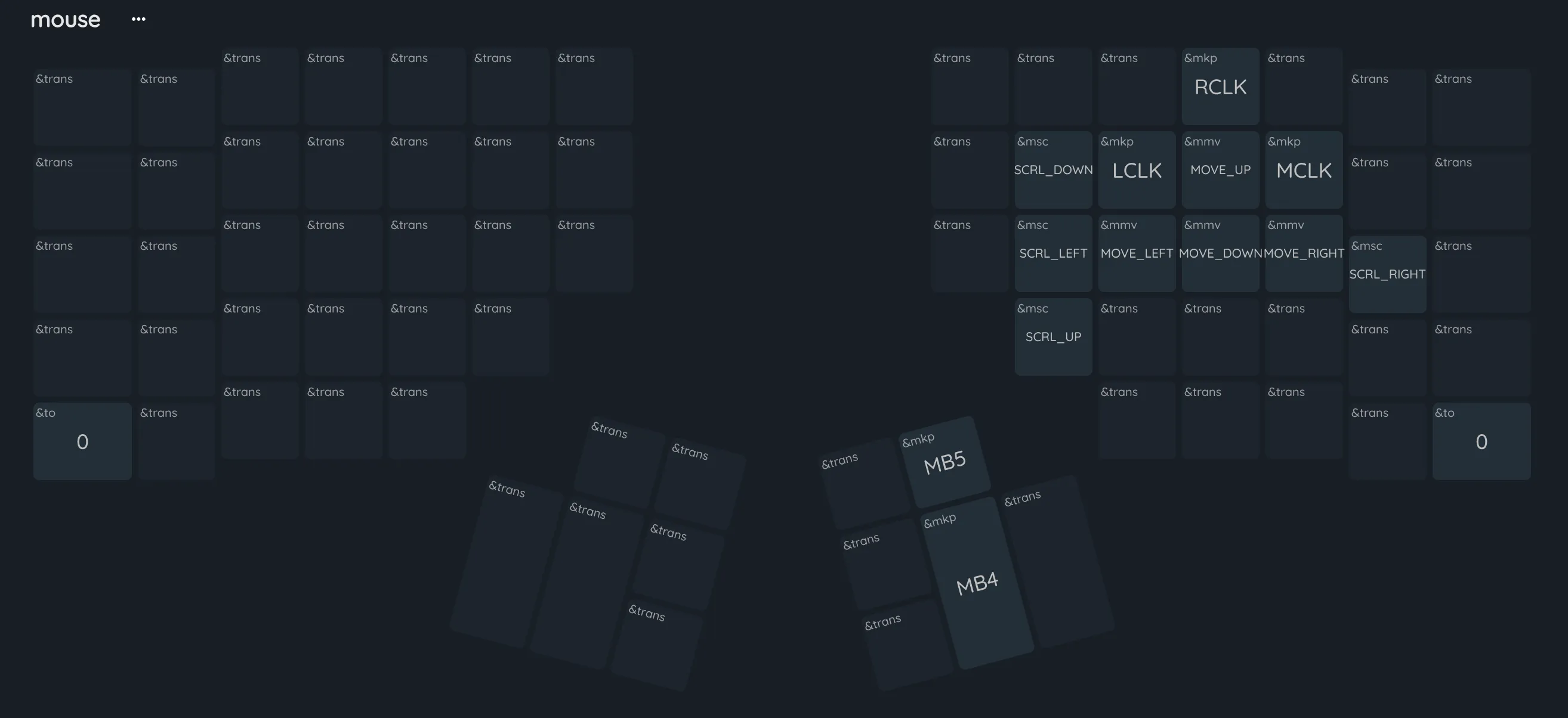 Pretty fun, not too useful since I generally prefer using a mouse.